Asset detail
The asset detail page is where you inspect a single asset. Use it to check real-time state, review webhook activity, identify warnings, and report issues to Enode.
You typically reach the asset detail page after selecting an asset from the asset overview, or by searching for a specific asset directly.
With the asset detail page, you can:
- View real-time asset states and live/historical webhook data
- See automatic warnings for common issues
- Report issues directly to Enode, with pre-filled ticket data
Copy linkFinding an asset
There are several ways to reach the asset detail page, depending on your starting point.
Copy linkFrom the asset overview
If you're browsing or filtering assets in the asset overview, click on any asset in the list to open its detail page.
This is especially useful when you're working from a pattern or question, like finding unreachable assets of a specific vendor, rather than looking up a known asset.
Copy linkSearch by asset or user ID
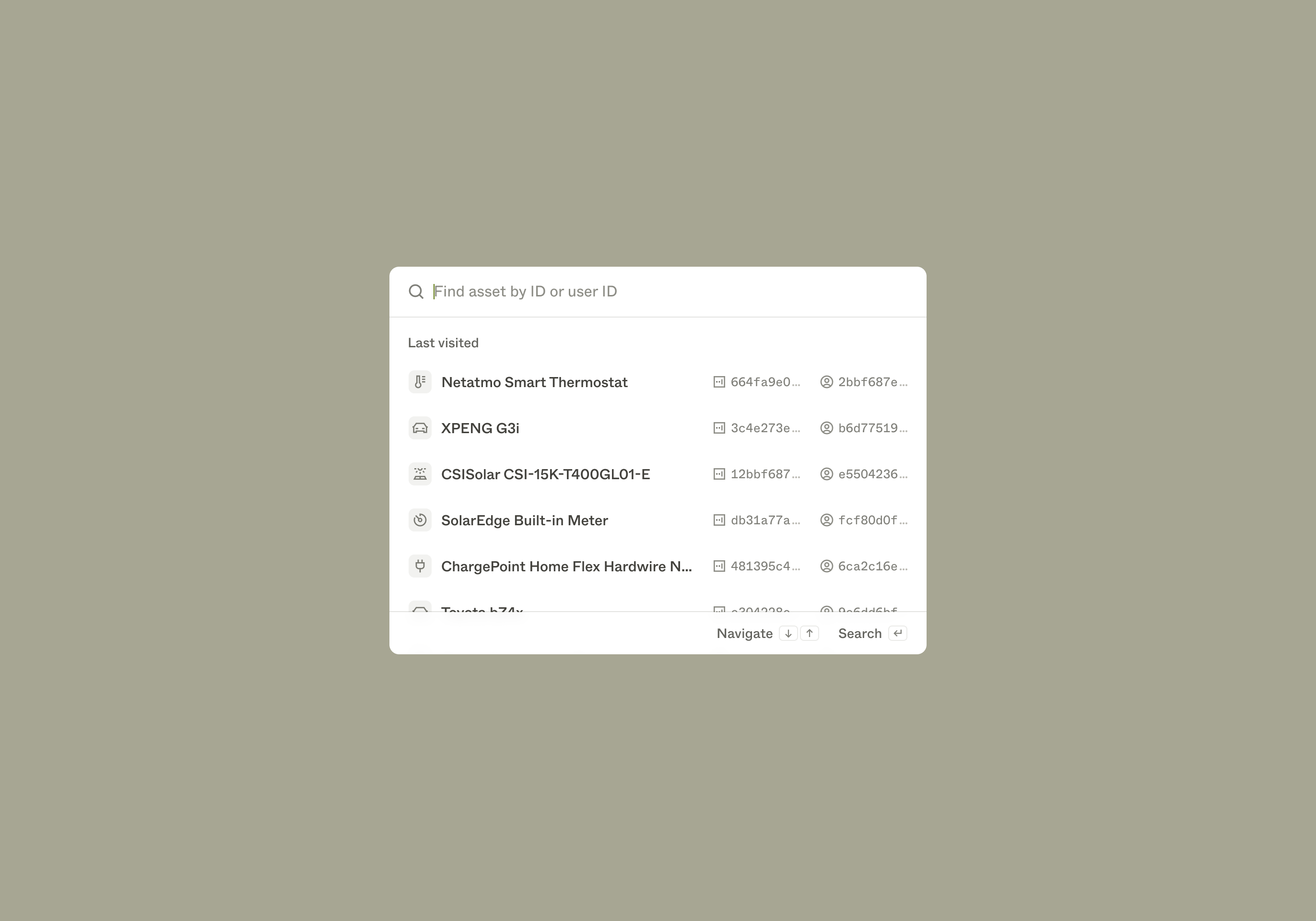
If you already know which asset you need, you can search for it directly:
- Copy the Enode asset ID or user ID for the asset that you want to investigate
- Open the asset search dialog from the client menu in your dashboard
- Paste the user or asset ID into the search field
You'll also see a list of your recently visited assets for quick access.
Copy linkViewing asset state
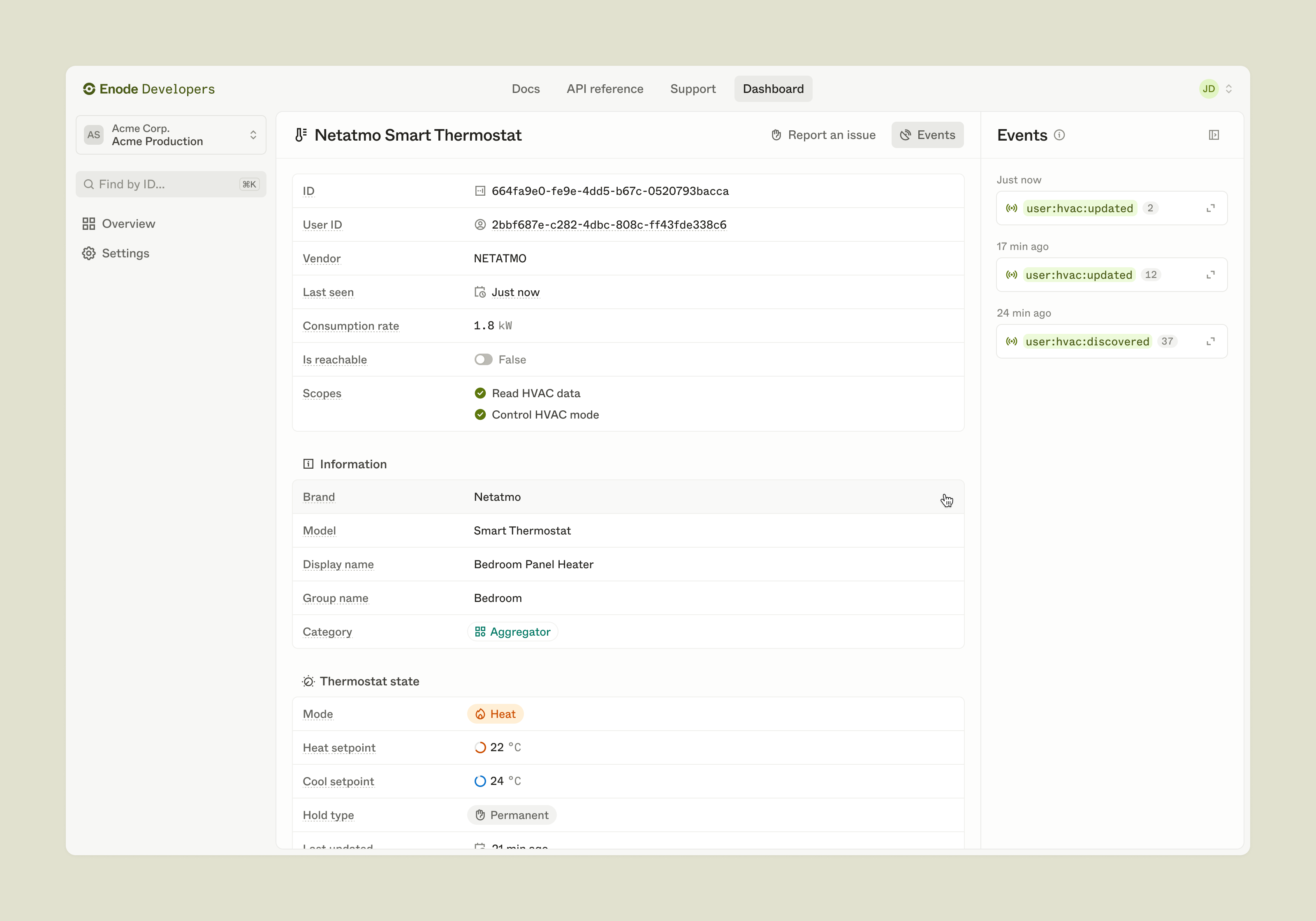
Once you select an asset, the detail page displays its current state. It mirrors the structure of the API response (e.g. GET /vehicles) and supports all available asset types.
Use this view to:
- Inspect real-time asset data
- Compare fields to expected values
- Troubleshoot integration issues
Copy linkWebhook events
The asset detail page subscribes to real-time webhook updates. Whenever the asset's state changes, the view is automatically updated.
The Events Feed shows a timeline of webhook activity. Click on any event to:
- See which fields changed
- View the raw JSON body of the webhook payload
Copy linkState warnings
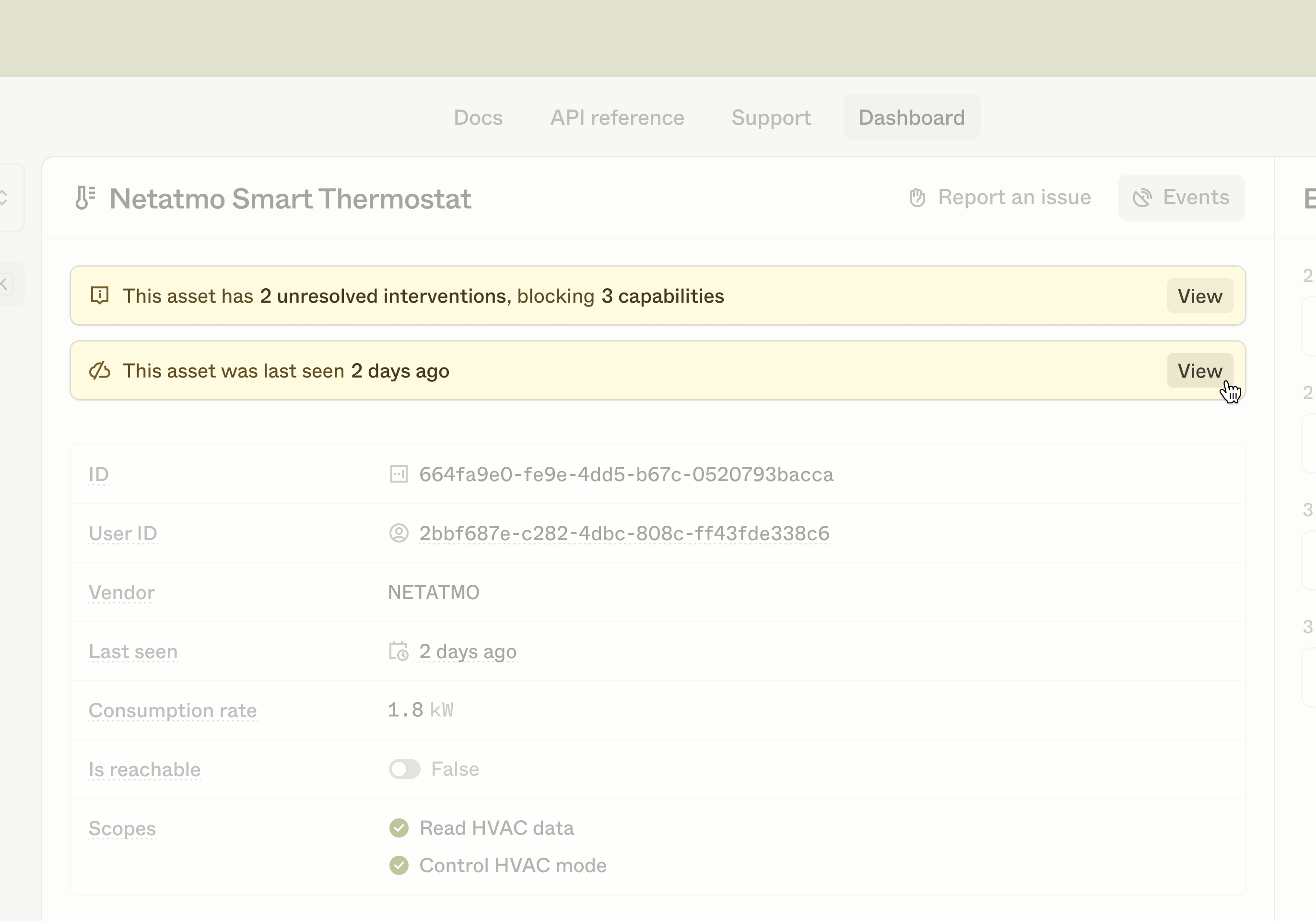
The asset detail page flags common issues like active interventions with state warnings, so you can quickly identify potential causes of integration or device errors.
Copy linkReporting an issue to Enode
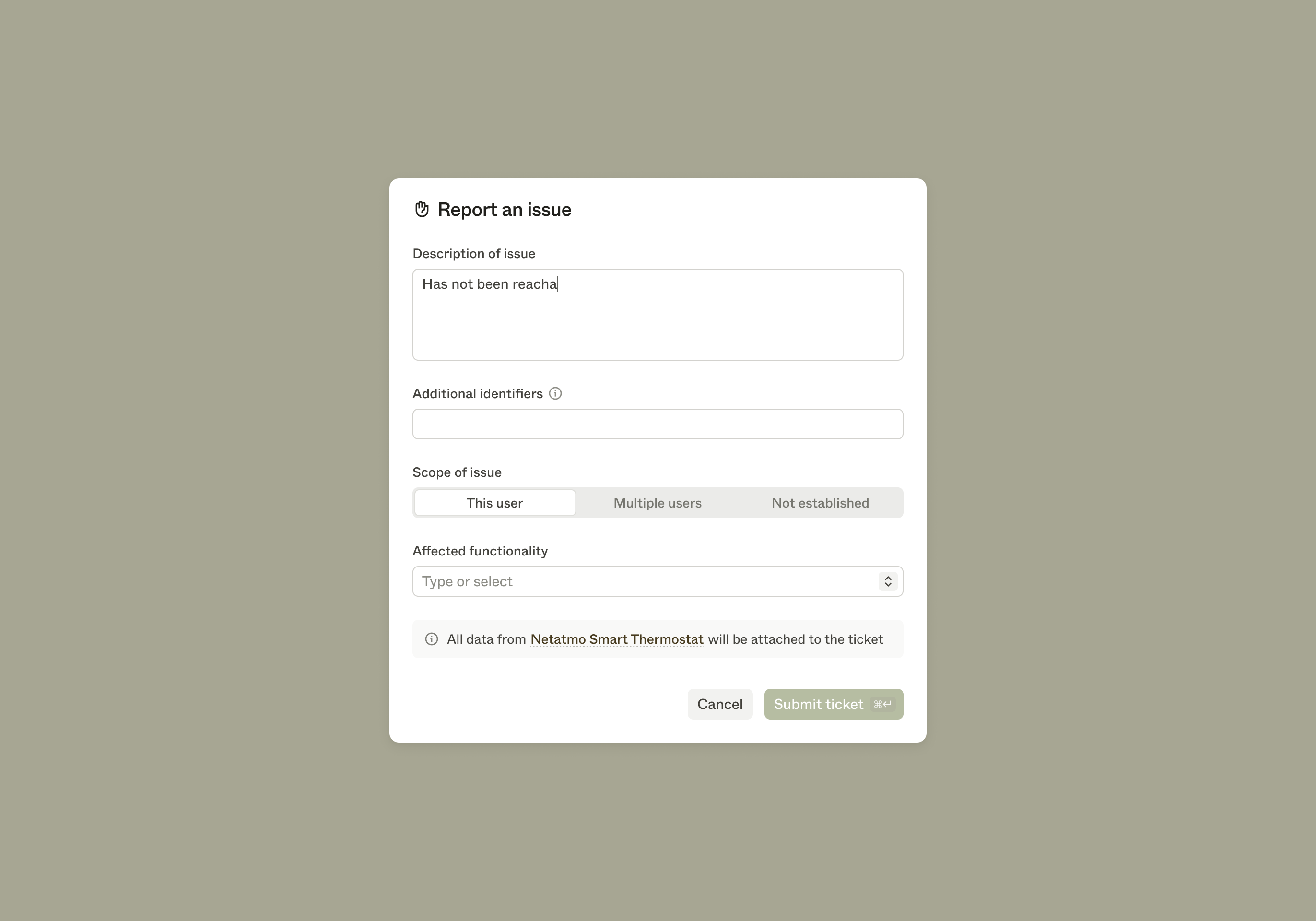
If you still need help, you can report an issue directly from the asset detail page.
When you click "Report issue", we'll automatically attach relevant asset metadata to the support ticket. This helps our team resolve your issue faster.
Investigate historical asset behavior to debug issues and resolve support requests.