Asset overview
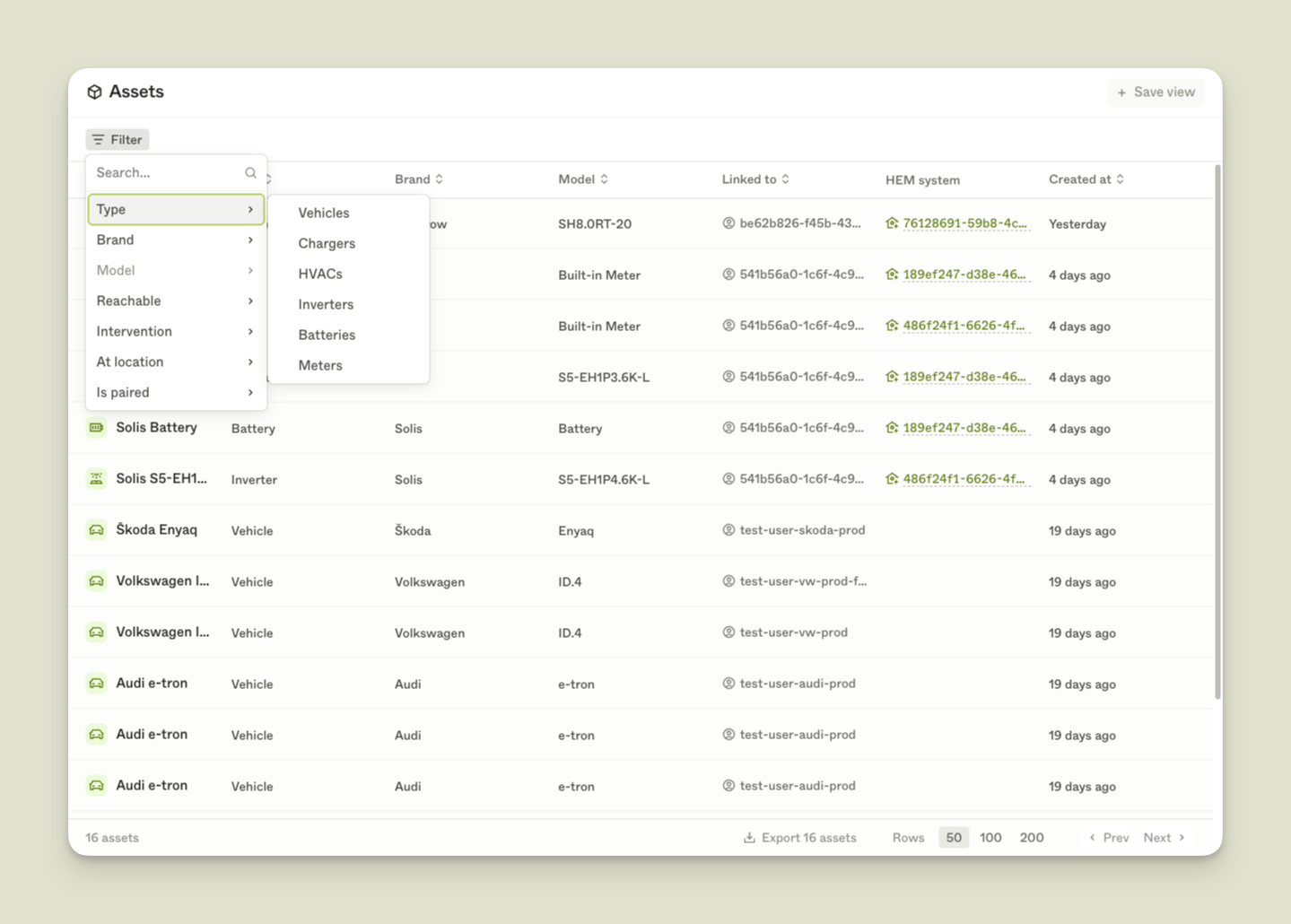
The asset overview is your starting point for working with assets. It shows all connected assets in your client and lets you filter, search, and navigate to individual assets for closer inspection.
Copy linkWhat you'll find here
When you open Assets from the sidebar, you'll see a list of all connected assets in your client. Each row shows key information like asset type, vendor, model, and current status.
From here, you can:
- Filter assets by type, vendor, model, reachability, and more
- Search for specific assets by name or ID
- Save filtered views for quick access
- Export the current list as CSV
Copy linkFiltering assets
Use the filter bar at the top to narrow down the list. Filters can be combined to define a specific group of assets. For example, you could filter for all vehicles from a specific vendor that are currently unreachable.
The list updates in real time as you adjust filters.
Copy linkSaved views
If you frequently work with a specific set of filters, you can save the current filter configuration as a named view. Saved views appear in the sidebar for quick access.
Copy linkExporting data
You can export the current filtered list as a CSV file. The export respects your active filters, so you only get the data you need.
Copy linkOpening an asset
Click on any asset in the list to open its Asset detail page, where you can inspect real-time state, review webhook events, and troubleshoot issues. From there, you can also access Asset history to trace events over time.
Inspect individual assets, view real-time state, and troubleshoot integration issues.